Stream Deck plugin

Your dish, live on three keys

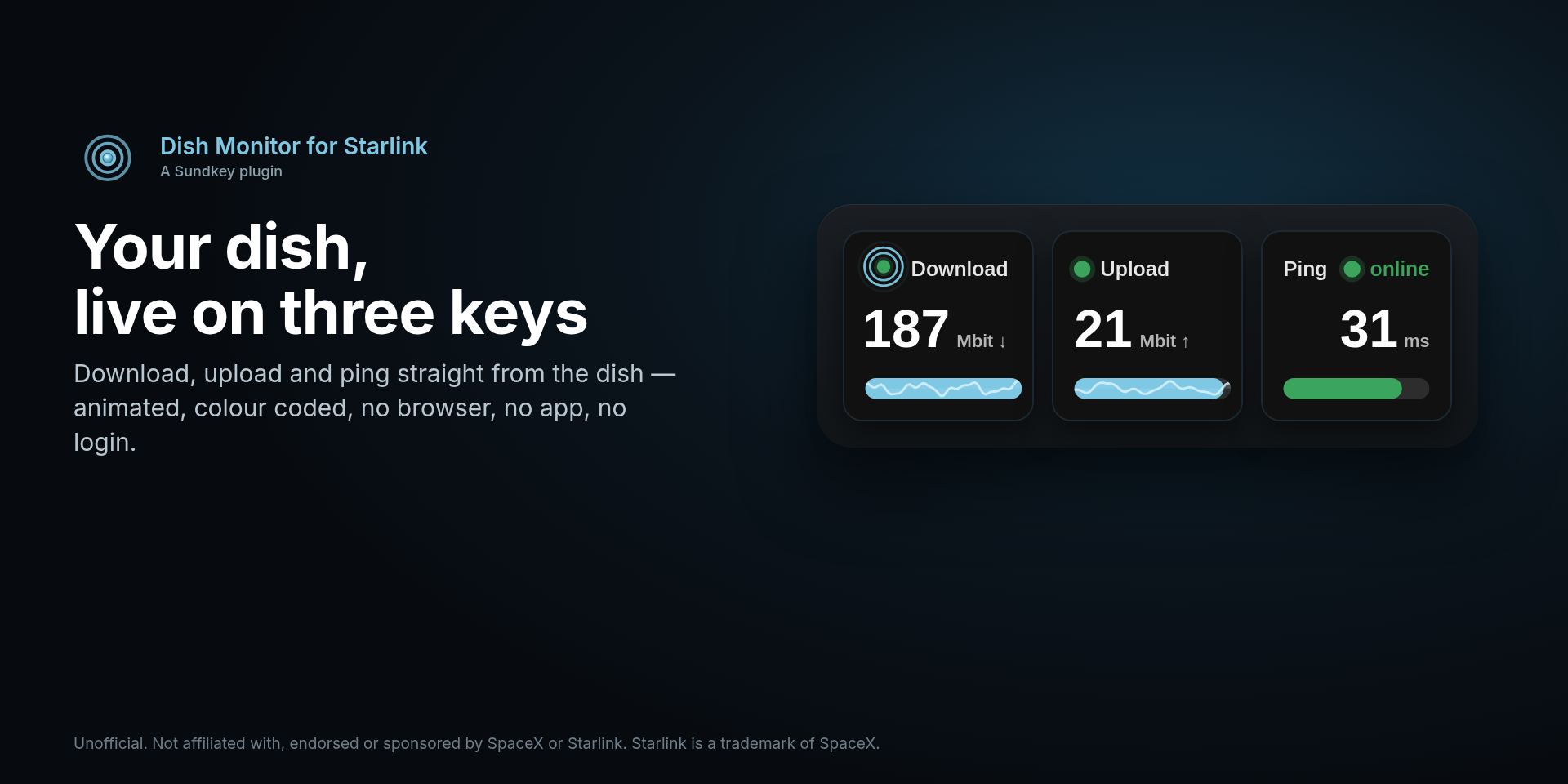
See download, upload and ping straight from your Starlink dish — animated and colour-coded, with no extra app and no login.

Coming soon to the Elgato Marketplace
Dish Monitor for Starlink on three Stream Deck keys, showing live download, upload and ping.

The three keys

Place all three next to each other. They share one live view of the dish.

1

Download + dish status

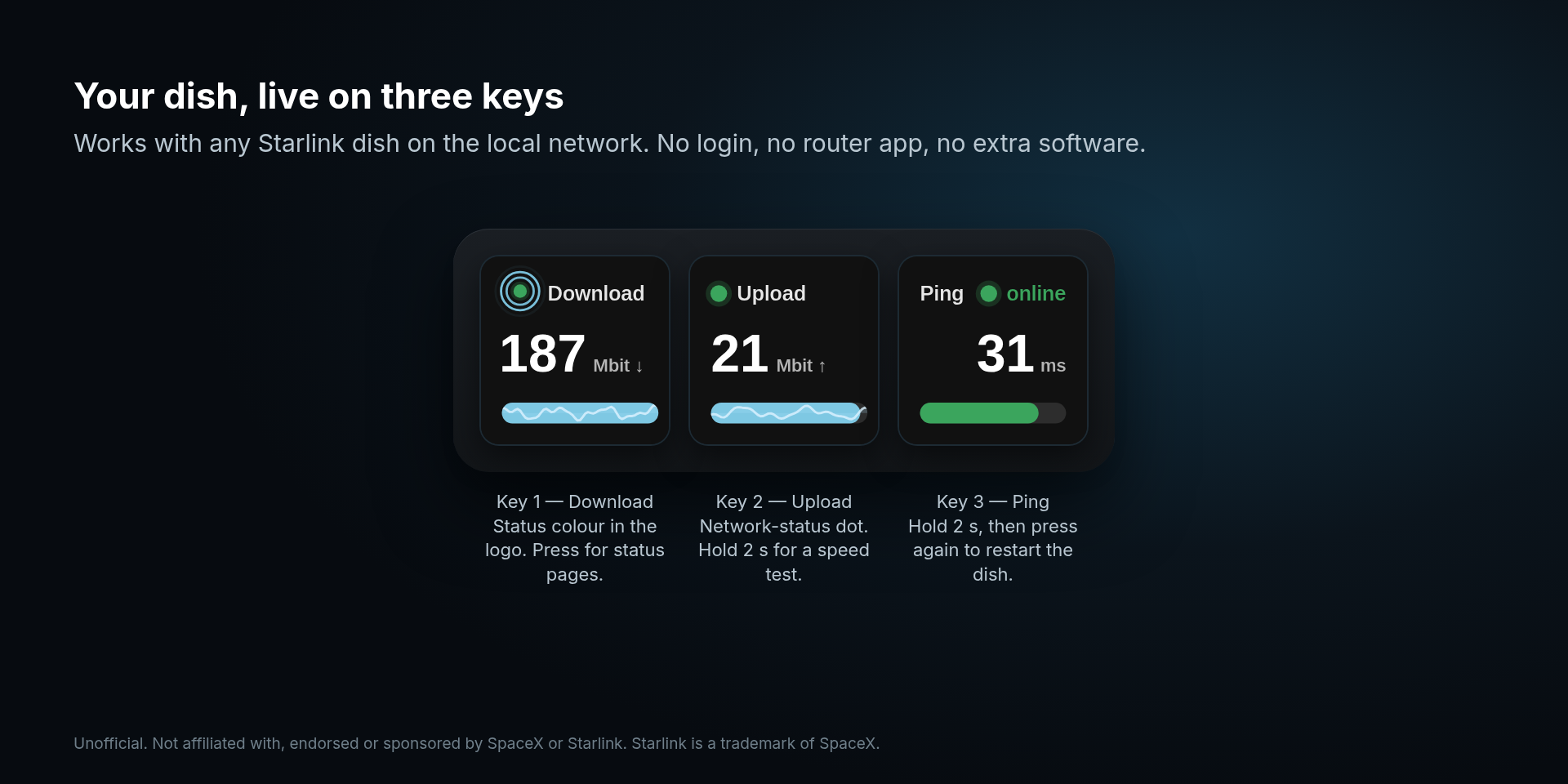
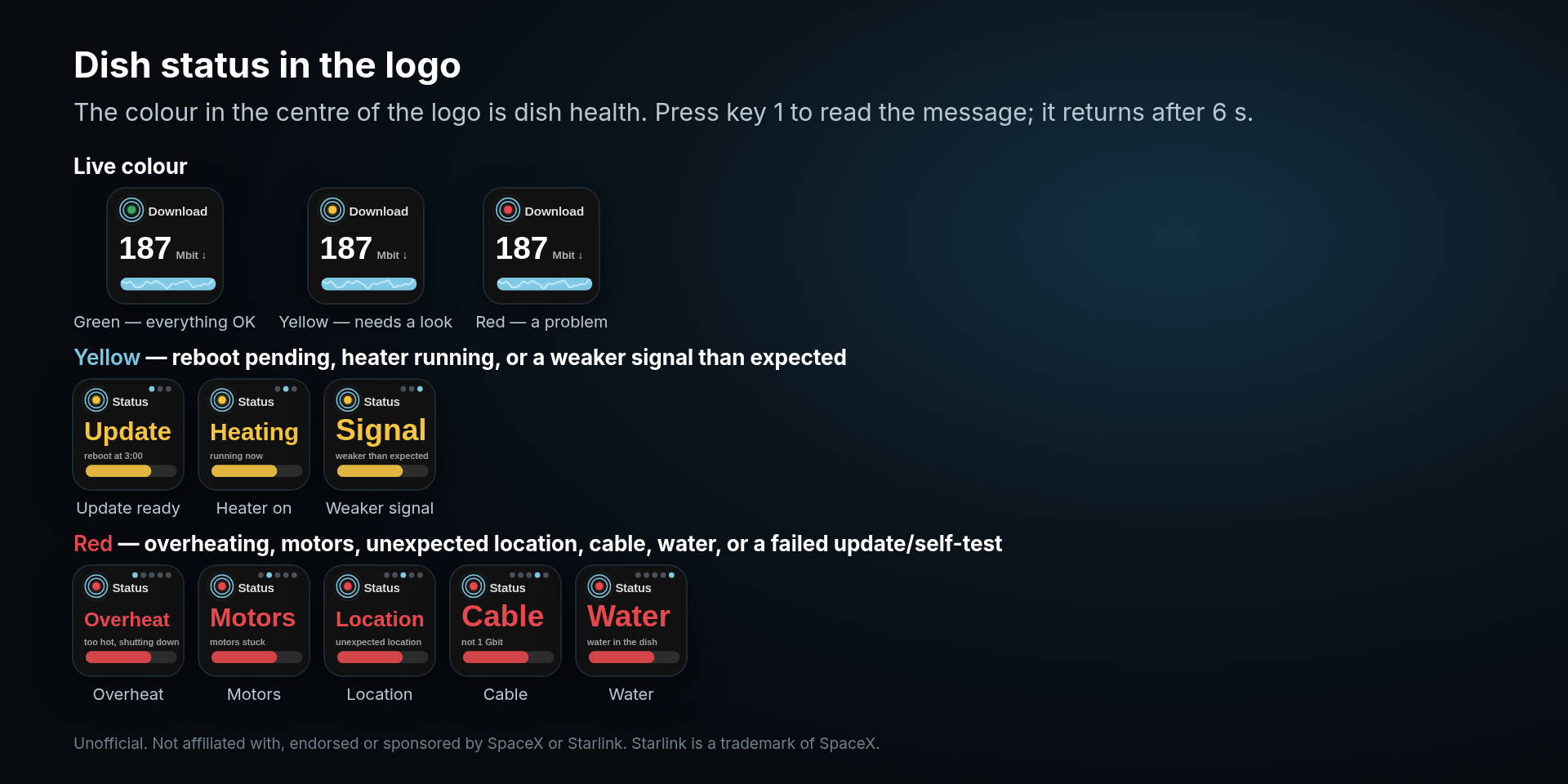
Live download rate, with an animated logo. The colour in the centre of the logo shows dish health. Press to step through status pages — for example “Dish OK”, any active alerts, then firmware and uptime. The key returns to the live view after six seconds.

2

Upload + speed test

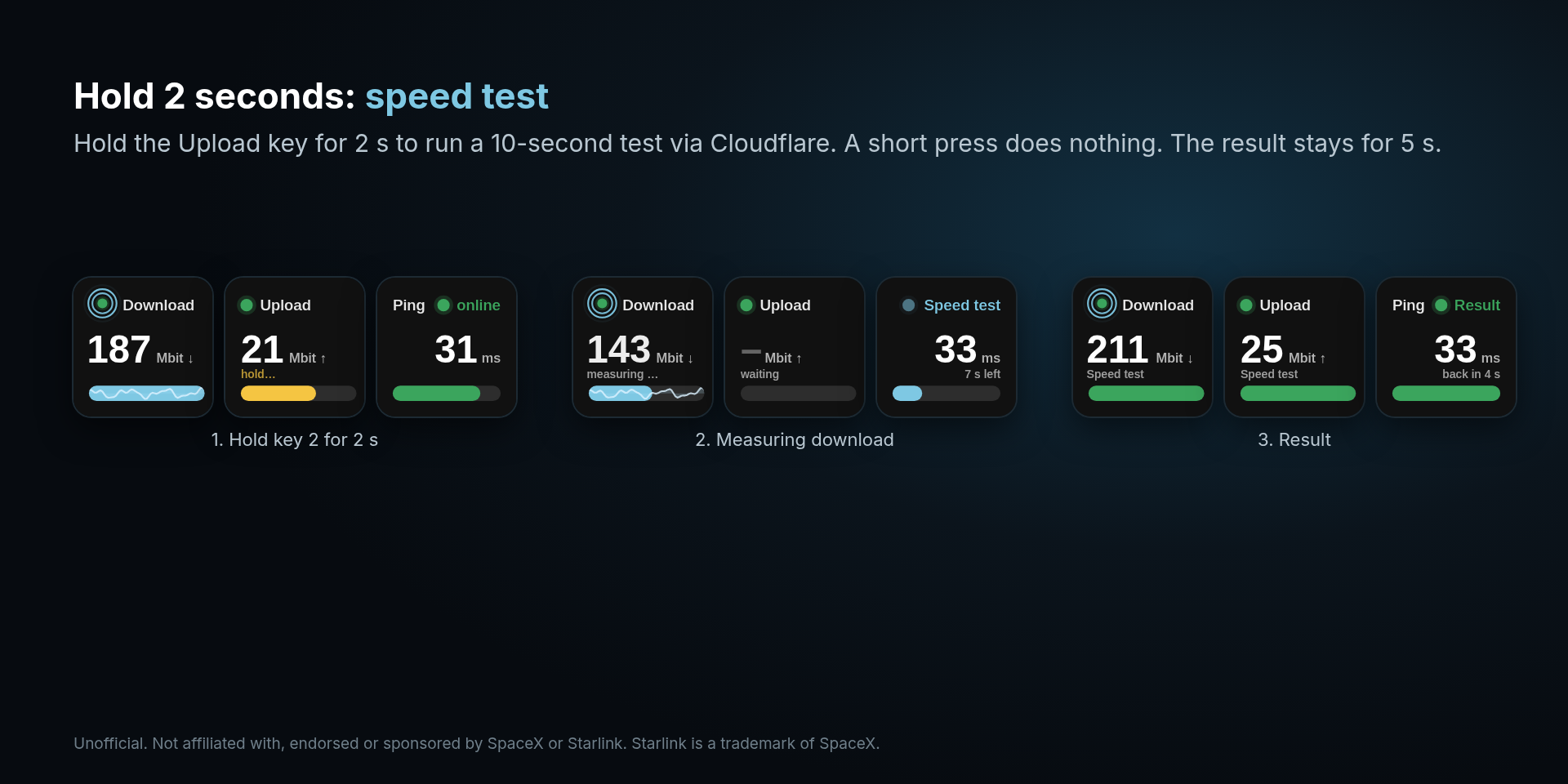
Live upload rate, with the official network-status dot to the left of “Upload” (display only). Hold for two seconds to run a 10-second speed test via Cloudflare. A short press shows a hint. Progress appears across the three keys; the result stays for five seconds.

3

Ping + protected restart

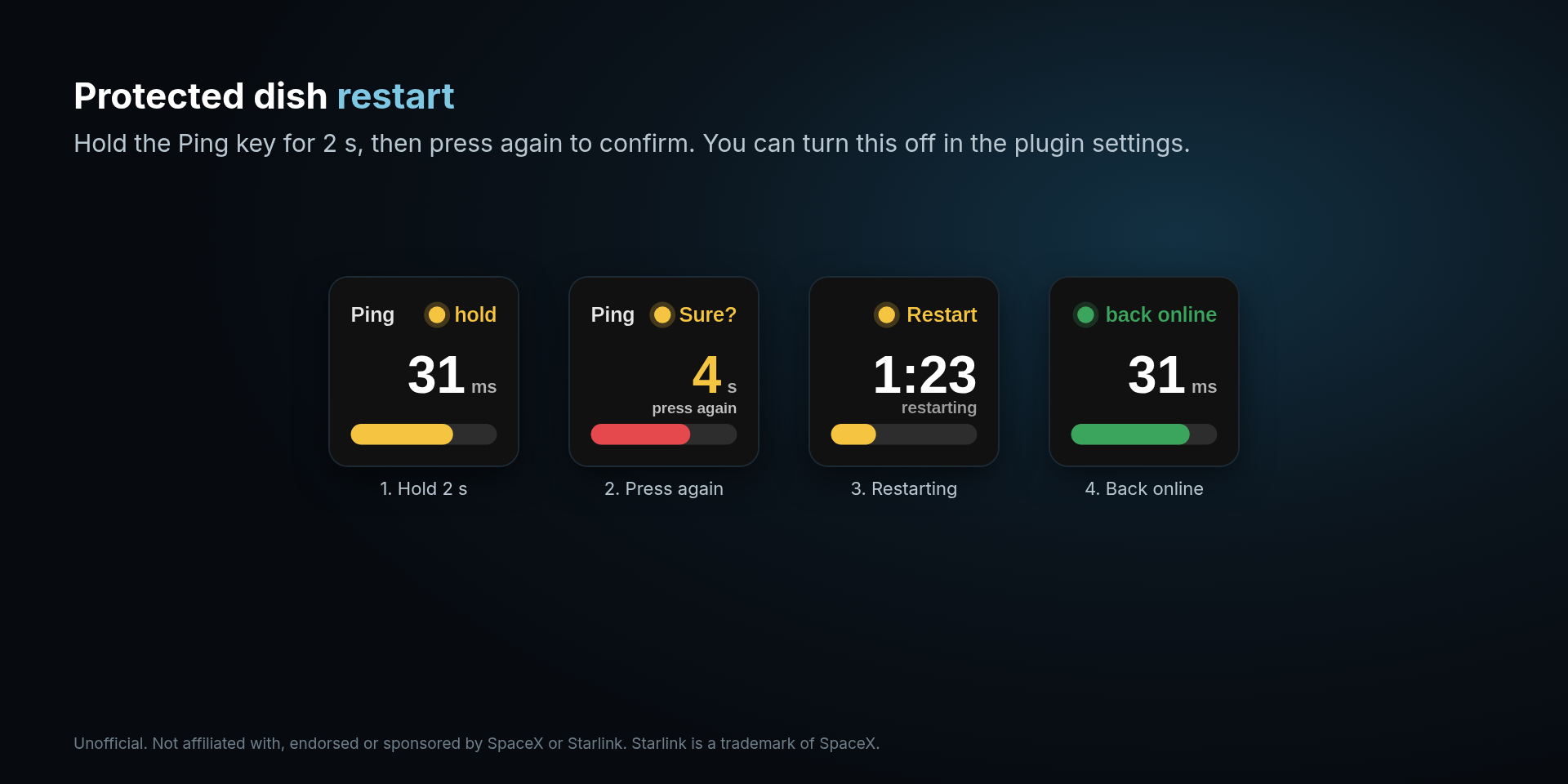
Latency, link quality and an online-status dot. To restart the dish, hold the key for two seconds until it shows “Sure?”, then press again to confirm. You can turn the restart action off in the plugin settings.

Green — dish OK Yellow — update ready, heater on, or weaker signal than expected Red — a problem the dish is reporting

In action

The three keys at a glance, dish-status colours, a two-second-hold speed test, and a protected restart.

Overview of the three keys: download with status colour in the logo, upload with the network-status dot, and ping with a protected restart.
Green, yellow and red dish-status colours in the logo, with example status pages for updates, heating, signal, overheating, motors, location, cable and water.
Speed test started by holding key 2 for two seconds, then progress and the result on the three keys.
Protected dish restart: hold for two seconds, confirm with Sure?, restarting, then back online.

Requirements

Stream Deck 7.1 or newer

Works on the official Elgato Stream Deck software, version 7.1 or later.

Windows 10+ or macOS 12+

The plugin runs on both platforms.

A Starlink dish on your local network

The plugin talks to the dish at 192.168.100.1, port 9201. No Starlink login is required.

Own router (bypass mode). If the dish is in bypass mode behind a third-party router, you may need to add a static route to 192.168.100.0/24 so your computer can still reach the dish. This applies to the live values as well as the speed test trigger and status pages.

FAQ and troubleshooting

The keys say offline, or stay on dashes

Check that the dish is powered and that you can reach 192.168.100.1 from the computer running Stream Deck. In bypass mode, add the static route above. You can also set the dish address in the plugin settings.

Do I need a Starlink account or app?

No. The plugin reads the dish locally. It does not log in to Starlink.

How much data does the speed test use?

A full 10-second test uses about 110 MB down and 15 MB up, via Cloudflare. It runs only when you hold key 2 for two seconds.

I don’t want the restart action

Open the plugin settings and turn the restart key off. The ping display stays; hold-to-restart is disabled.

The dish-status colour is yellow or red

Press key 1 to step through the messages (for example an update waiting for a night-time reboot, the heater running, a weaker signal than expected, or a reported fault). After six seconds the key returns to the live download view.

Privacy

No dish data is sent to Sundkey. Almost everything stays on your computer. The only outbound requests are a speed test to Cloudflare (speed.cloudflare.com) when you start one, and an occasional check of Starlink’s public status page (starlink.statuspage.io).

Support

Questions or problems: write to sundkey@mailbox.org. This is an unofficial plugin from Sundkey, not affiliated with, endorsed or sponsored by SpaceX or Starlink.

Coming soon to the Elgato Marketplace

Auf Deutsch

Dish Monitor for Starlink zeigt Download, Upload und Ping deiner Schüssel live auf drei Stream-Deck-Tasten. Ein Plugin von Sundkey. Kein Login, keine extra App.

1

Download + Dish-Status

Live-Download und der Dish-Status als Farbe in der Mitte des Logos. Ein Druck blättert durch Status-Seiten (zum Beispiel „Dish OK“, aktive Meldungen, Firmware und Laufzeit). Nach sechs Sekunden geht es zurück zur Live-Anzeige.

2

Upload + Speedtest

Live-Upload und der Netz-Punkt links neben „Upload“, von der öffentlichen Starlink-Statusseite (nur Anzeige). Zwei Sekunden halten startet einen 10-Sekunden-Speedtest über Cloudflare. Ein kurzer Druck zeigt einen Hinweis. Das Ergebnis bleibt fünf Sekunden stehen.

3

Ping + geschützter Neustart

Latenz, Leitungsqualität und ein Online-Punkt. Für einen Neustart der Schüssel: zwei Sekunden halten, bis „Sure?“ erscheint, dann nochmal drücken zum Bestätigen. In den Einstellungen lässt sich der Neustart abschalten.

Grün — Dish OK Gelb — Update bereit, Heizung läuft oder Signal schwächer als erwartet Rot — die Schüssel meldet ein Problem

Voraussetzungen

Stream Deck 7.1 oder neuer

Offizielle Elgato-Software, Version 7.1 oder höher.

Windows 10+ oder macOS 12+

Das Plugin läuft auf beiden Systemen.

Starlink-Schüssel im lokalen Netz

Standardadresse 192.168.100.1, Port 9201. Es ist kein Starlink-Login nötig.

Eigener Router (Bypass-Modus). Wenn die Schüssel hinter einem dritten Router im Bypass-Modus hängt, musst du dort eventuell eine statische Route zu 192.168.100.0/24 eintragen, damit der Rechner die Schüssel erreicht. Das gilt für die Live-Werte, den Speedtest und die Status-Seiten.

Kurz-FAQ

Die Tasten bleiben offline oder zeigen Striche

Prüfe, ob die Schüssel läuft und 192.168.100.1 vom Rechner mit Stream Deck erreichbar ist. Im Bypass-Modus die Route oben eintragen. Die Adresse kannst du auch in den Plugin-Einstellungen setzen.

Brauche ich ein Starlink-Konto?

Nein. Das Plugin liest die Schüssel nur im lokalen Netz.

Wie viel Volumen braucht der Speedtest?

Ein voller 10-Sekunden-Test etwa 110 MB Download und 15 MB Upload, über Cloudflare, und nur wenn du Taste 2 zwei Sekunden hältst.

Datenschutz und Support

Es werden keine Daten der Schüssel an Sundkey geschickt. Fast alles bleibt auf deinem Rechner. Nach außen gehen nur der Speedtest zu Cloudflare (speed.cloudflare.com), wenn du ihn startest, und gelegentlich eine Abfrage der öffentlichen Statusseite (starlink.statuspage.io). Support: sundkey@mailbox.org. Inoffiziell: nicht mit SpaceX oder Starlink verbunden, nicht von ihnen unterstützt oder gesponsert.

Demnächst im Elgato Marketplace